If you’re new to fast-food cashiering or training for a crew member position at McDonald’s, learning how the McDonald’s POS Training Simulator works is the most essential first step. The simulator is intended to let beginners practice order taking, menu browsing, and payment processing in a realistic setting—without pressure and from any device.
This helpful beginner’s guide will walk you through everything you need to know, including how to use the simulator, place your first order, handle payments, and increase your speed and accuracy.
Let’s get started.
What Is the McDonald’s POS Training Simulator?
The McDonald’s POS Training Simulator is an interactive game-based application that simulates the actual cashier system found in McDonald’s restaurants. It helps you to practice essential skills like:
- Taking customer orders
- Adding customizations
- Handling combo meals
- Applying discounts
- Processing payments
- Managing accuracy and speed
Because it looks and feels like a real POS terminal, the simulator helps new employees feel at ease before they enter an actual store.
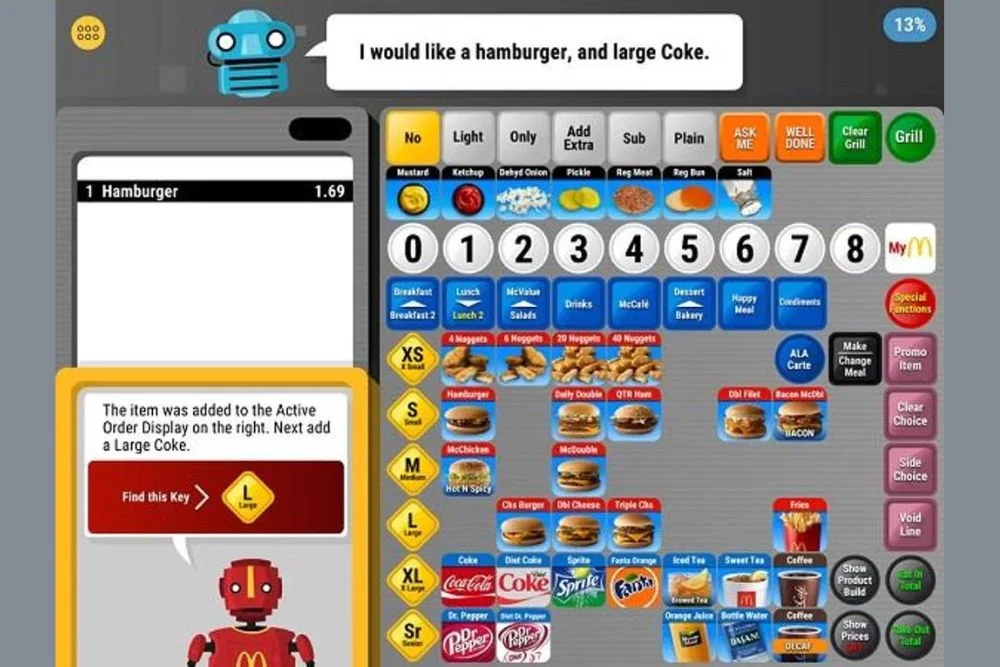
How the Simulator Interface Works
Before you begin practicing, it’s important to understand the layout:
Menu Categories
Buttons for:
- Burgers
- Breakfast
- Chicken
- Drinks
- Desserts
- Sides
- Add-ons
These reflect real store menu groupings.
Order Summary Box
Shows all selected items, quantity, and price.
Customization Options
For:
- Changing drink size
- Adding cheese
- Removing ingredients
- Meal upgrades
Payment Screen
Choose between:
- Cash
- Card
- Mobile pay
- Exact change
Understanding these basic elements will make the rest of your training faster and easier.
Step-by-Step: How to Use the McDonald’s POS Training Simulator
Below is a beginner-friendly walkthrough to help you practice your first order.
Step 1: Open the Simulator on Your Device
The simulator works on:
- Desktop
- Laptop
- Android (APK)
- iPhone (iOS)
- Tablet
- Online browser version
Choose the version that works best for you. If you haven’t installed it yet, you can download the McDonald’s POS Training Simulator here.
Step 2: Select the Correct Menu Category
When a customer tells you their order, start by identifying the item’s category.
For example:
- “I want a Big Mac Meal.” → Burgers
- “One large iced coffee.” → Drinks
- “Two Hash Browns.” → Breakfast
Tap the category to open its menu items.
Step 3: Tap the Correct Item
Once you’ve found the correct screen, tap the food item the customer desires.
If the item has a meal option:
- The system will ask: Meal or À la Carte?
Choose based on the customer’s request. You can also explore the full visual layout on our POS Training Game Download page.
Step 4: Apply Customizations
If the order requires changes, the simulator will display customization options such as:
- Remove tomato
- Add cheese
- Swap drink
- Upgrade to large
- Add dessert
This helps prepare you for real shifts, where customizations are extremely common.
Step 5: Review the Order in the Summary Box
Always double-check your work.
Make sure:
- Quantity is correct
- Customizations are correct
- Items match the customer’s request
Accuracy is more important than speed at this stage.
Step 6: Choose the Payment Method
When the customer is ready to pay, the simulator allows you to practice payment options:
- Cash: Enter the amount received
- Card: Tap “Card” to complete
- Mobile Pay: Simulates digital payments
- Exact Change: Completes instantly
Beginner tip:
Begin with card payments, then work on cash payments last because they require more attention.
Step 7: Complete the Order
Once the payment is processed, the order is complete.
The simulator will show:
- Order accuracy
- Completion time
- Performance rating
This helps you track your improvement over time.
Why Using the Simulator Helps You in Real Life
McDonald’s POS systems are rapid, visible, and based on tapping, not typing.. Practicing on the simulator helps you:
- Learn the POS layout
- Reduce cashier errors
- Boost order-taking speed
- Improve confidence
- Prepare for real shift pressure
- Meet McDonald’s service speed expectations
This is why thousands of new crew members use this training tool before their first day.
Conclusion
Learning how to utilize the McDonald’s POS Training Simulator is one of the most efficient ways to prepare for cashier duties at a real McDonald’s restaurant. Whether you’re preparing for a career, practicing for fun, or developing your talents, this step-by-step tutorial will help you gain confidence, accuracy, and speed.
If you want to continue learning, check out our advanced tutorials on:
- Speed techniques
- Order-taking accuracy
- Payment handling
- Menu memorization
Your training journey starts here — keep practicing, stay patient, and you’ll master the McDonald’s POS system in no time.